阿里云SSL证书服务支持下载证书安装到Jetty服务器,从而使Jetty服务器支持HTTPS安全访问。本文介绍了证书安装的具体操作。
1、Jetty服务器版本确认。建议使用Jetty 9.2.22及以上版本。
2、从阿里云下载tomcat格式的证书。非系统生成的CSR需要生成pfx证书密匙对文件,转换命令如下。
openssl pkcs12 -export -out 214362464370691.pfx -inkey 214362464370691.key -in 214362464370691.pem
3、转换pfx的证书密匙对文件为jks格式,转换命令如下:
说明 Windows环境注意在%JAVA_HOME%/jdk/bin目录中执行。
keytool -importkeystore -srckeystore 密匙对文件.pfx -destkeystore 证书名称.jks -srcstoretype PKCS12 -deststoretype JKS
回车后输入两次要设置的jks格式证书密码,然后输入一次pfx证书密码。三次密码必须输入pfx-password.txt记录的密码。jks密码与pfx证书密码相同,否则可能会导致Jetty服务器启动失败。
4、配置Jetty的SSL。
1)确保Jetty的http页面可正常访问。
2)拷贝证书。进入Jetty服务器目录下的etc,新建存放jks格式证书的目录,并复制jks格式证书至当前目录。
# pwd /opt/jetty9222/etc # mkdir cert # cd cert/ # cp ../../../keys/jetty.jks . # ls jetty.jks
3)编辑Jetty服务器目录下etc中的jetty-ssl.xml文件,设置证书相关参数(密码设置为pfx-password.txt中记录的所有密码)。
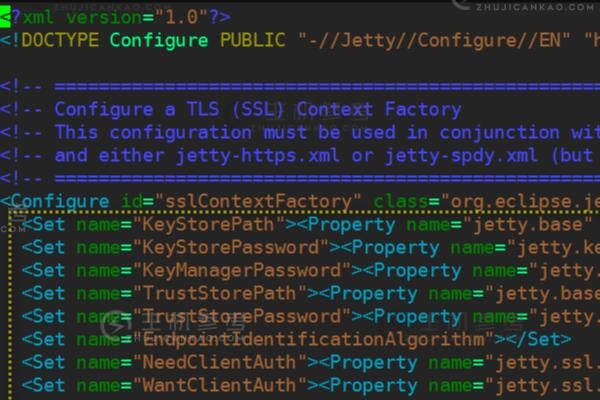
<?xml version="1.0"?> <!DOCTYPE Configure PUBLIC "-//Jetty//Configure//EN" "http://www.eclipse.org/jetty/configure_9_0.dtd"> <!-- ============================================================= --> <!-- Configure a TLS (SSL) Context Factory --> <!-- This configuration must be used in conjunction with jetty.xml --> <!-- and either jetty-https.xml or jetty-spdy.xml (but not both) --> <!-- ============================================================= --> <Configure id="sslContextFactory" class="org.eclipse.jetty.util.ssl.SslContextFactory"> <Set name="KeyStorePath"><Property name="jetty.base" default="." />/<Property name="jetty.keystore" default="etc/cert/jetty.jks"/></Set> <Set name="KeyStorePassword"><Property name="jetty.keystore.password" default="214362464370691"/></Set> <?xml version="1.0"?> <!DOCTYPE Configure PUBLIC "-//Jetty//Configure//EN" "http://www.eclipse.org/jetty/configure_9_0.dtd"> <!-- ============================================================= --> <!-- Configure a TLS (SSL) Context Factory --> <!-- This configuration must be used in conjunction with jetty.xml --> <!-- and either jetty-https.xml or jetty-spdy.xml (but not both) --> <!-- ============================================================= --> <Configure id="sslContextFactory" class="org.eclipse.jetty.util.ssl.SslContextFactory"> <Set name="KeyStorePath"><Property name="jetty.base" default="." />/<Property name="jetty.keystore" default="etc/cert/jetty.jks"/></Set> <Set name="KeyStorePassword"><Property name="jetty.keystore.password" default="214362464370691"/></Set> <Set name="KeyManagerPassword"><Property name="jetty.keymanager.password" default="214362464370691"/></Set> <Set name="TrustStorePath"><Property name="jetty.base" default="." />/<Property name="jetty.truststore" default="etc/cert/jetty.jks"/></Set> <Set name="TrustStorePassword"><Property name="jetty.truststore.password" default="214362464370691"/></Set> <Set name="EndpointIdentificationAlgorithm"></Set> <Set name="NeedClientAuth"><Property name="jetty.ssl.needClientAuth" default="false"/></Set> <Set name="WantClientAuth"><Property name="jetty.ssl.wantClientAuth" default="false"/></Set> <Set name="ExcludeCipherSuites"> <Array type="String"> <Item>SSL_RSA_WITH_DES_CBC_SHA</Item> <Item>SSL_DHE_RSA_WITH_DES_CBC_SHA</Item> <Item>SSL_DHE_DSS_WITH_DES_CBC_SHA</Item> <Item>SSL_RSA_EXPORT_WITH_RC4_40_MD5</Item> <Item>SSL_RSA_EXPORT_WITH_DES40_CBC_SHA</Item> <Item>SSL_DHE_RSA_EXPORT_WITH_DES40_CBC_SHA</Item> <Item>SSL_DHE_DSS_EXPORT_WITH_DES40_CBC_SHA</Item> </Array> </Set> <!-- =========================================================== --> <!-- Create a TLS specific HttpConfiguration based on the --> <!-- common HttpConfiguration defined in jetty.xml --> <!-- Add a SecureRequestCustomizer to extract certificate and --> <!-- session information --> <!-- =========================================================== --> <New id="sslHttpConfig" class="org.eclipse.jetty.server.HttpConfiguration"> <Arg><Ref refid="httpConfig"/></Arg> <Call name="addCustomizer"> <Arg><New class="org.eclipse.jetty.server.SecureRequestCustomizer"/></Arg> </Call> </New> </Configure>
4)编辑Jetty服务器目录中的etc中的jetty-https.xml文件,配置https所使用的443端口。
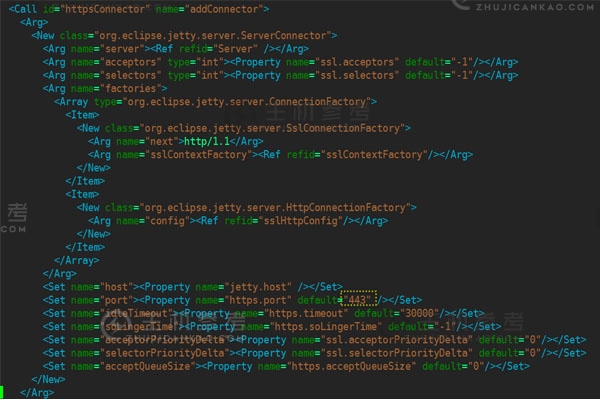
<?xml version="1.0"?> <!DOCTYPE Configure PUBLIC "-//Jetty//Configure//EN" "http://www.eclipse.org/jetty/configure_9_0.dtd"> <!-- ============================================================= --> <!-- Configure a HTTPS connector. --> <!-- This configuration must be used in conjunction with jetty.xml --> <!-- and jetty-ssl.xml. --> <!-- ============================================================= --> <Configure id="Server" class="org.eclipse.jetty.server.Server"> <!-- =========================================================== --> <!-- Add a HTTPS Connector. --> <!-- Configure an o.e.j.server.ServerConnector with connection --> <!-- factories for TLS (aka SSL) and HTTP to provide HTTPS. --> <!-- All accepted TLS connections are wired to a HTTP connection.--> <!-- --> <!-- Consult the javadoc of o.e.j.server.ServerConnector, --> <!-- o.e.j.server.SslConnectionFactory and --> <!-- o.e.j.server.HttpConnectionFactory for all configuration --> <!-- that may be set here. --> <!-- =========================================================== --> <Call id="httpsConnector" name="addConnector"> <Arg> <New class="org.eclipse.jetty.server.ServerConnector"> <Arg name="server"><Ref refid="Server" /></Arg> <Arg name="acceptors" type="int"><Property name="ssl.acceptors" default="-1"/></Arg> <Arg name="selectors" type="int"><Property name="ssl.selectors" default="-1"/></Arg> <Arg name="factories"> <Array type="org.eclipse.jetty.server.ConnectionFactory"> <Item> <New class="org.eclipse.jetty.server.SslConnectionFactory"> <Arg name="next">http/1.1</Arg> <Arg name="sslContextFactory"><Ref refid="sslContextFactory"/></Arg> </New> </Item> <Item> <New class="org.eclipse.jetty.server.HttpConnectionFactory"> <Arg name="config"><Ref refid="sslHttpConfig"/></Arg> </New> </Item> </Array> </Arg> <Set name="host"><Property name="jetty.host" /></Set> <Set name="port"><Property name="https.port" default="443" /></Set> <Set name="idleTimeout"><Property name="https.timeout" default="30000"/></Set> <Set name="soLingerTime"><Property name="https.soLingerTime" default="-1"/></Set> <Set name="acceptorPriorityDelta"><Property name="ssl.acceptorPriorityDelta" default="0"/></Set> <Set name="selectorPriorityDelta"><Property name="ssl.selectorPriorityDelta" default="0"/></Set> <Set name="acceptQueueSize"><Property name="https.acceptQueueSize" default="0"/></Set> </New> </Arg> </Call> </Configure>
5)编辑Jetty服务器目录下的start.ini文件,根据需要更改端口号,设置启动加载jetty-https.xml、jetty-ssl.xml。
jetty.port=80 jetty.dump.stop= etc/jetty-ssl.xml etc/jetty-https.xml
6)重启Jetty,验证https访问是否正常。验证
:Jetty服务器上如何安装SSL证书?Jetty服务器安装SSL证书的操作步骤,https://vps.caogenba.com.com/68493.html
如今做站的人不多了,多个朋友多条路子,加入站长论坛和大佬们同道交流,Tips:可以免费打广告哦~ 点击立即加入>>

 如何给WordPress插件添加网站加速
在当今的互联网时代,网站速度已成为用户体验和搜索引擎优化的关键因素之一。如果您正在使用WordPress构建网站,为您的网站添加网站加速功能非常重要。本文将向您展示如何向WordPress插件添加站点加速,并提供相关的代码示例。
首先,了解网站加速的原理
在我们开始之前,让我们了解网站加速的原理。网站加速的目的是通过优化网站的加载速度来提高用户体验和SEO排名。为了实现这一目标,我们需要使用一些常见的加速方法,例如:
1.使用CDN(内容分发网络):通过缓存网站的静态资源,如图片、CSS和JavaScript文件,可以加快这些文件的下载和加载速度,提高整个网站的访问速度。
2.启用浏览器缓存:通过为网站的静态文件设置适当的过期时间,您可以让浏览器缓存这些文件,从而减少服务器请求和传输时间。
3.压缩文件:通过压缩HTML、CSS和JavaScript文件,可以减小它们的大小,从而提高文件的下载和加载速度。
二、为WordPress插件添加网站加速功能的步骤
以下是将网站加速添加到WordPress插件的步骤:
1.选择好的CDN服务提供商:市场上有许多CDN服务提供商可供选择,例如CloudFlare和MaxCDN。根据您的需求和预算选择合适的CDN提供商。
2.注册和设置CDN服务:根据所选CDN提供商提供的指南注册和设置您的CDN服务。此步骤包括验证您的域名和修改DNS设置。
3.配置WordPress插件使用CDN:有一些WordPress插件可以帮助您轻松配置和管理CDN。W3 Total Cache是常用的插件之一。安装并激活插件后,您可以在插件设置页面上找到CDN选项,包括您使用的CDN供应商的设置参数。
4.添加CDN设置参数:根据CDN供应商提供的指南填写CDN设置页面中的参数。参数通常包括CDN地址、加速域名、密钥等。
5.启用浏览器缓存:W3 Total Cache插件还提供了启用浏览器缓存的选项。在插件的设置页面中,您可以找到浏览器缓存选项并启用该功能。这将为网站的静态文件设置适当的到期时间,以便浏览器可以缓存这些文件。
6.压缩文件:W3 Total Cache插件还可以帮助您压缩网站的静态文件。在插件的设置页面中,您可以找到压缩文件的选项并启用该功能。这将自动压缩HTML、CSS和JavaScript文件并减小它们的大小。
第三,代码示例
以下是使用W3 Total Cache插件为WordPress插件添加站点加速功能的代码示例:
/* * *设置CDN加速*/function my _ CDN _ settings(){ define(‘CDN _ URL‘,‘https://CDN . example . com/‘);define(‘CDN _ COOKIE _ DOMAIN‘,$ _ SERVER【‘HTTP _ HOST‘】);} add _ action(‘init’,‘my _ cdn _ settings’);/* * *启用浏览器缓存*/function my _ browser _ cache _ settings(){ header(“expires:“。GM date(“d,dmyh: i: s“,time()+365 * 24 * 60 * 60)。“GMT“);header(“Cache-Control:public,max-age = 31536000“);} add _ action(‘send _ headers’,‘my _ browser _ cache _ settings’);/* * * compress html */function my _ compress _ html(){ ob _ start(‘my _ html _ compress‘);} function my _ HTML _ compress($ HTML){ return preg _ replace(array‘/‘,//delete HTML comments‘/s { 2,}/‘,//delete extra spaces‘/‘,//delete tabs‘/?/‘、//删除换行符)、数组(‘、//空“”、//一个空格“”、//空“”、//空)、$ html);} add _ action(‘get _ header’,‘my _ compress _ html’);本文介绍了在WordPress插件中添加网站加速功能的步骤,并提供了相关代码示例。通过优化网站的加载速度,您可以提高用户体验和SEO排名,从而使您的网站更具竞争力。希望这篇文章能帮到你,祝你加速成功!
以上就是如何给WordPress插件添加网站加速功能的细节。更多内容请关注草根吧VPS其他相关文章!
如何给WordPress插件添加网站加速
在当今的互联网时代,网站速度已成为用户体验和搜索引擎优化的关键因素之一。如果您正在使用WordPress构建网站,为您的网站添加网站加速功能非常重要。本文将向您展示如何向WordPress插件添加站点加速,并提供相关的代码示例。
首先,了解网站加速的原理
在我们开始之前,让我们了解网站加速的原理。网站加速的目的是通过优化网站的加载速度来提高用户体验和SEO排名。为了实现这一目标,我们需要使用一些常见的加速方法,例如:
1.使用CDN(内容分发网络):通过缓存网站的静态资源,如图片、CSS和JavaScript文件,可以加快这些文件的下载和加载速度,提高整个网站的访问速度。
2.启用浏览器缓存:通过为网站的静态文件设置适当的过期时间,您可以让浏览器缓存这些文件,从而减少服务器请求和传输时间。
3.压缩文件:通过压缩HTML、CSS和JavaScript文件,可以减小它们的大小,从而提高文件的下载和加载速度。
二、为WordPress插件添加网站加速功能的步骤
以下是将网站加速添加到WordPress插件的步骤:
1.选择好的CDN服务提供商:市场上有许多CDN服务提供商可供选择,例如CloudFlare和MaxCDN。根据您的需求和预算选择合适的CDN提供商。
2.注册和设置CDN服务:根据所选CDN提供商提供的指南注册和设置您的CDN服务。此步骤包括验证您的域名和修改DNS设置。
3.配置WordPress插件使用CDN:有一些WordPress插件可以帮助您轻松配置和管理CDN。W3 Total Cache是常用的插件之一。安装并激活插件后,您可以在插件设置页面上找到CDN选项,包括您使用的CDN供应商的设置参数。
4.添加CDN设置参数:根据CDN供应商提供的指南填写CDN设置页面中的参数。参数通常包括CDN地址、加速域名、密钥等。
5.启用浏览器缓存:W3 Total Cache插件还提供了启用浏览器缓存的选项。在插件的设置页面中,您可以找到浏览器缓存选项并启用该功能。这将为网站的静态文件设置适当的到期时间,以便浏览器可以缓存这些文件。
6.压缩文件:W3 Total Cache插件还可以帮助您压缩网站的静态文件。在插件的设置页面中,您可以找到压缩文件的选项并启用该功能。这将自动压缩HTML、CSS和JavaScript文件并减小它们的大小。
第三,代码示例
以下是使用W3 Total Cache插件为WordPress插件添加站点加速功能的代码示例:
/* * *设置CDN加速*/function my _ CDN _ settings(){ define(‘CDN _ URL‘,‘https://CDN . example . com/‘);define(‘CDN _ COOKIE _ DOMAIN‘,$ _ SERVER【‘HTTP _ HOST‘】);} add _ action(‘init’,‘my _ cdn _ settings’);/* * *启用浏览器缓存*/function my _ browser _ cache _ settings(){ header(“expires:“。GM date(“d,dmyh: i: s“,time()+365 * 24 * 60 * 60)。“GMT“);header(“Cache-Control:public,max-age = 31536000“);} add _ action(‘send _ headers’,‘my _ browser _ cache _ settings’);/* * * compress html */function my _ compress _ html(){ ob _ start(‘my _ html _ compress‘);} function my _ HTML _ compress($ HTML){ return preg _ replace(array‘/‘,//delete HTML comments‘/s { 2,}/‘,//delete extra spaces‘/‘,//delete tabs‘/?/‘、//删除换行符)、数组(‘、//空“”、//一个空格“”、//空“”、//空)、$ html);} add _ action(‘get _ header’,‘my _ compress _ html’);本文介绍了在WordPress插件中添加网站加速功能的步骤,并提供了相关代码示例。通过优化网站的加载速度,您可以提高用户体验和SEO排名,从而使您的网站更具竞争力。希望这篇文章能帮到你,祝你加速成功!
以上就是如何给WordPress插件添加网站加速功能的细节。更多内容请关注草根吧VPS其他相关文章!